 Many times, when I work with a customer, it’s because they’ve tried to accomplish something and need a little extra help. Often, this falls into the application optimization area. For example, a few years ago, I had a customer that was developing a rather sophisticated SharePoint workflow that had some custom code that would process and merge two Excel spreadsheets together. They were using Excel 2007 so their merging was being done using the excellent Open XML SDK. To their credit, the application did what it needed to do – but it took about an hour to process these spreadsheets. The developers on the project knew about the performance problems but as so often happens, they thought they knew where the bottlenecks were and how they should approach optimizing it. So, they started injecting some tracing into their code and worked hard to optimize this lengthy process. After a while, though, they had only shaved a few seconds off of that 60 minute time and while they did show some improvement – they knew they needed to get the processing done even faster for this to become a viable solution for their organization. So, they sent me a simple repro of the code and together in just a few short days, we were able to get the processing from 60 minutes to under a minute. That’s a BIG win. Big like the Titanic big.
I love these types of engagements because, well, I like to make things faster. The biggest problem that I see, though, is that some people shy away from using the tools in optimization scenarios because they’ve been so invested in their code that they think they know why it’s not performing. This is the “psychic” effect and the mindset is usually something like this:
“I wrote this darn code and while I was writing it – I knew this method could be improved so now I’m going to finally optimize the darn thing.”
It sounds good in-theory, right? You wrote the code, so you should know how to improve it and really, what’s a tool going to tell you that you don’t already know? In truth, it can tell you quite a bit. In other situations, the developers will add some instrumentation (via tracing/debugging statements) to what they perceive as the critical code paths and the resultant timing points to one area when the problem really resides in a completely different section of code. That’s right, folks, your tracing statements may be lying to you. So what’s a developer to do? Well, use the tools, of course – the right tool for the right job, as they say. Let me expand upon that in the context of some code that yours truly wrote a little while ago.
The Problem
A few short weeks ago, I posted a entry about parsing your ASP.NET event log error messages. For those that didn’t read it, we just convert the EventLog messages to XML, parse the messages using RegEx.Match and then generate some statistics on them. The code I provided on that blog entry appeared to be very fast when it was processing a few records – but as the XML files grew, I started noticing that it seemed to take longer and longer to process the results. So, I did what any developer does initially. We’ll add some instrumentation into our code to see if we can figure out the problem. This usually takes the form of something like the following:
Console.WriteLine("Start:  Load XDocument." + DateTime.Now.ToString());
XDocument document = XDocument.Load(@"C:\Work\TestData\AllEVTX\MyData.xml");
Console.WriteLine("End:  Load XDocument." + DateTime.Now.ToString());

Console.WriteLine("Start:  Load Messages into object." + DateTime.Now.ToString());
var messages = from message in document.Descendants("Message")
               select EventLogMessage.Load(message.Value);
Console.WriteLine("End: Load Messages into object." + DateTime.Now.ToString());

Console.WriteLine("Start:  Query Objects." + DateTime.Now.ToString());
var results = from log in messages
              group log by log.Exceptiontype into l
              orderby l.Count() descending, l.Key
              select new
              {
                  ExceptionType = l.Key,
                  ExceptionCount = l.Count()
              };
Console.WriteLine("End:  Query Objects." + DateTime.Now.ToString());

Console.WriteLine("Start:  Output Exception Type Details." + DateTime.Now.ToString());
foreach (var result in results)
{
    Console.WriteLine("{0} : {1} time(s)",
                      result.ExceptionType,
                      result.ExceptionCount);
}
Console.WriteLine("End:  Output Exception Type Details." + DateTime.Now.ToString());
As you can see, all I’ve done is taken the code and slapped some Console.WriteLine statements with a DateTime.Now call to find out when the operation starts and when it completes. If I run this code I get the following timings:
Start: Load XDocument.9/19/2010 11:28:08 AM
End: Load XDocument.9/19/2010 11:28:09 AM
Start: Load Messages into object.9/19/2010 11:28:09 AM
End: Load Messages into object.9/19/2010 11:28:09 AM
Start: Query Objects.9/19/2010 11:28:09 AM
End: Query Objects.9/19/2010 11:28:09 AM
Start: Output Exception Type Details.9/19/2010 11:28:09 AM
End: Output Exception Type Details.9/19/2010 11:28:49 AM
This is clearly a problem Now, the question is why?
The Research
This might lead you to believe that the simple loop I have to get the ExceptionType and the ExceptionCount was the root of all evil, so to speak. The problem, though, is that there’s not really a lot you can do to improve this:
foreach (var result in results)
{
    Console.WriteLine("{0} : {1} time(s)",
                      result.ExceptionType,
                      result.ExceptionCount);
}
Oh sure, you could use the excellent Parallel functionality in .NET 4 to send off the work to alternate threads. So, you might do something like this:
Parallel.ForEach(results, result=> {

    Console.WriteLine("{0} : {1} times(s)",
                      result.ExceptionType,
                      result.ExceptionCount);

});
But if you re-run the test, you get the following results:
Start: Load XDocument.9/19/2010 11:46:20 AM
End: Load XDocument.9/19/2010 11:46:20 AM
Start: Load Messages into object.9/19/2010 11:46:20 AM
End: Load Messages into object.9/19/2010 11:46:20 AM
Start: Query Objects.9/19/2010 11:46:20 AM
End: Query Objects.9/19/2010 11:46:20 AM
Start: Output Exception Type Details.9/19/2010 11:46:20 AM
End: Output Exception Type Details.9/19/2010 11:46:54 AM
Wait a second…is it taking longer now??? That’s just not right. At this point, you should take a step back and tell yourself “STOP GUESSING AND JUST USE THE PROFILER.” So, always being one to listen to myself, I kick off the Visual Studio profiler and immediately it shows us the “hot path”. This was actually a nice improvement in the VS2010 profiler. Right on the summary page, it will show us our most expensive call paths:
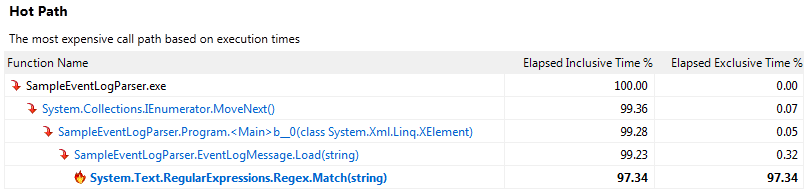
But wait, it’s pointing to the RegEx.Match(…). Why is it pointing to that? From my own metrics above, I see that the loading of the Message strings into an object takes less than a second to execute. Well, the real reason is that LINQ uses kind of a lazy loading algorithm. Basically, it won’t necessarily process your queries until you try to do something with the data. Yes, that’s an over-simplification but in our case, it means that my EventLogMessage.Load(…) method won’t be called until I actually try to do something with the data. So, now, armed with this information, I can take a look at my Load() method and see what it’s actually doing and how it’s using the RegEx.Match(…) functionality:
Match myMatch = s_regex.Match(rawMessageText);

EventLogMessage message = new EventLogMessage();

message.Eventcode = myMatch.Groups["Eventcode"].Value;
message.Eventmessage = myMatch.Groups["Eventmessage"].Value;
message.Eventtime = myMatch.Groups["Eventtime"].Value;
message.EventtimeUTC = myMatch.Groups["EventtimeUTC"].Value;
...

return message;
So, basically we’re using the Match(…) to take that Message property and parse it out into the properties of the EventLogMessage object. The fact that this is the slowest part of the code shouldn’t necessarily shock you. Jeff Atwood wrote up a good blog entry a few years ago on something like this. If we look just at the RegEx.Match(…) in the profiler, we see that the problem isn’t necessarily with each Match call but the overall cost with 10,000+ calls:
| Function Name |
Number of Calls |
Min Elapsed Inclusive Time |
Avg Elapsed Inclusive Time |
Max Elapsed Inclusive Time |
| System.Text.RegularExpressions.Regex.Match(string) |
|
10,881 |
1.01 |
3.27 |
684.29 |
The Fix
So, now that we know the problem and the reason for it – what’s a Dev to do? Well, at this point, we should be thinking of an alternate way of performing this parsing without using RegEx. The simplest method is just to use some general string parsing, so we’ll start off with replacing our large RegEx pattern with a simple string array:
public static readonly string[] ParserString = new string[] {
            @"Event code:" ,
            @"Event message:" ,
            @"Event time:" ,
            @"Event time (UTC):" ,
            @"Event ID:" ,
            ...
            @"Stack trace:" ,
            @"Custom event details:"};
This array will be used in our fancy new GetValue method:
private static string GetValue(string rawMessageText, int Key)
{
    int startLoc = rawMessageText.IndexOf(ParserString[Key]);
    int endLoc;
    if (Key + 1 == ParserString.Length)
        endLoc = rawMessageText.Length;
    else
        endLoc = rawMessageText.IndexOf(ParserString[Key + 1], startLoc);

    return rawMessageText.Substring(startLoc + ParserString[Key].Length, endLoc - startLoc - ParserString[Key].Length);
}
This method accepts our raw message string and a key index. This method just finds the existence of a string like “Event message:” in our raw message and then finds the index of the next string, like “Event time:” and subtracts the two to get at the value of the field. For example, given the following string:
“… Event message: An unhandled exception has occurred. Event time: …”
The red text are the keys and the highlighted blue text is the string between them. The idea for the above GetValue(…) method was actually provided by a fellow PFE engineer, Richard Lang during a late night chat session.
The last step to this process is just to call the GetValue(…) method from our new Load method:
public static EventLogMessage Load(string rawMessageText)
{
    EventLogMessage message = new EventLogMessage();

    int Key = 0;
    message.Eventcode = GetValue(rawMessageText, Key++);
    message.Eventmessage = GetValue(rawMessageText, Key++); ;
    message.Eventtime = GetValue(rawMessageText, Key++); ;
    ...
    return message;

}
So, now we’ve essentially removed the need for RegEx by implementing our own string parsing algorithm. Once we compile the code and run our application again, we see some major improvements:
Start: Load XDocument.9/19/2010 12:55:31 PM
End: Load XDocument.9/19/2010 12:55:31 PM
Start: Load Messages into object.9/19/2010 12:55:31 PM
End: Load Messages into object.9/19/2010 12:55:31 PM
Start: Query Objects.9/19/2010 12:55:31 PM
End: Query Objects.9/19/2010 12:55:31 PM
Start: Output Exception Type Details.9/19/2010 12:55:31 PM
End: Output Exception Type Details.9/19/2010 12:55:33 PM
We essentially improved the processing of our records from 40 seconds to under 2 seconds. I’d say that’s a pretty big improvement. Even better, we can use our Parallel.ForEach(…) code from above to make this even faster since we’re no longer bound by the RegEx parser:
Start: Load XDocument.9/19/2010 1:00:13 PM
End: Load XDocument.9/19/2010 1:00:13 PM
Start: Load Messages into object.9/19/2010 1:00:13 PM
End: Load Messages into object.9/19/2010 1:00:13 PM
Start: Query Objects.9/19/2010 1:00:13 PM
End: Query Objects.9/19/2010 1:00:13 PM
Start: Output Exception Type Details.9/19/2010 1:00:13 PM
End: Output Exception Type Details.9/19/2010 1:00:14 PM
So now it takes just about a second to process these records. Considering it’s processing over 10,000 event log messages, I’d say this is acceptable performance, for now.
Closing Comments
I just want to say a few things real quick. RegEx is not inherently evil. It is still one of the fastest and easiest methods to consume and parse data. You should not feel the need to go back to your own applications that are working just fine and refactor all of your code to strip out the RegEx expressions. It just so happens that sometimes too much of a good thing can be bad for your health. In our case, with over 10,000 RegEx.Match(…) calls in rapid succession, the RegEx appeared to be our bottleneck. This may or may not be the root cause of your own performance problems. The key takeaway from this blog entry should be that you should NOT guess when it comes to optimizing code paths. Instead, you should use the tools available at your disposal to find the bottleneck.
Until next time.